
These are infamous words spoken by many of us as we run from meeting to meeting or between locations. While we can’t use Power Automate to stop the clock, there are some great components that, when put together, can help us notify others of our arrival.

In this article, I’m discussing a flow I built that does the following:
- Captures my current location
- Determines where I’m going (e.g. office, home, etc.) and how I’m getting there (driving, public transit, or by foot)
- Calculates my travel time using Bing Maps
- Checks to see if there is a meeting that starts between now and the time that I’m due to arrive and notifies the attendees of my expected arrival time
Sounds interesting? Read on…
Button Trigger
The flow uses a button trigger that takes as input the destination from a drop-down list. The reason is that I used the button and drop down is to minimize the interaction wit the flow. Consider that you may be driving while sending that message.
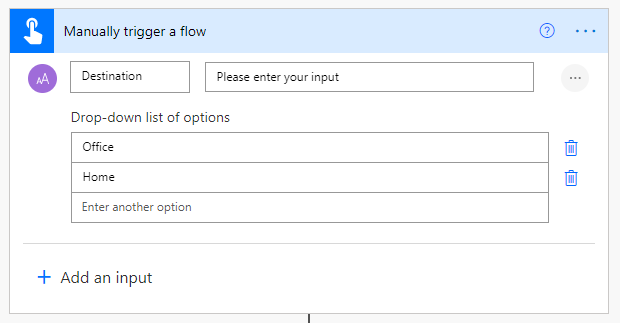
Alternatively, I could have built a simple Power App that contains one button per location. Besides getting the destination location, the button trigger is also providing me with my longitude and latitude. These are needed as my starting location for travel.
Destinations
Before processing any information, I had to define the latitude and longitude for each location I’m traveling to. I defined them using a Parse JSON action.
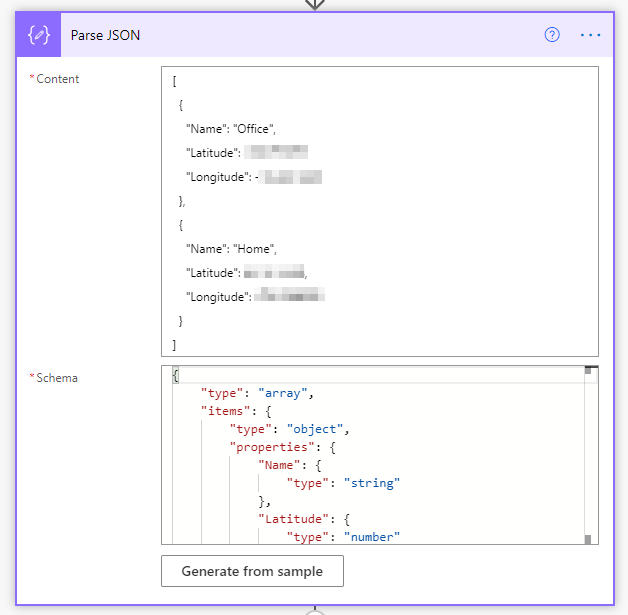
When the flow is triggered, I used a filter action to get the destination coordinates by filtering on the name.
Travel time
Now that I have my current geo-coordinates and those of my destination, I use an HTTP action to call the Bing Maps REST API and get me back my travel information. There are lots of options available. For simplicity, I’m only supplying the following parameters:
- Travel Method (Driving, Transit, Walking)
- wayPoint.1 (current location)
- wayPoint.2 (destination)
- Bing key
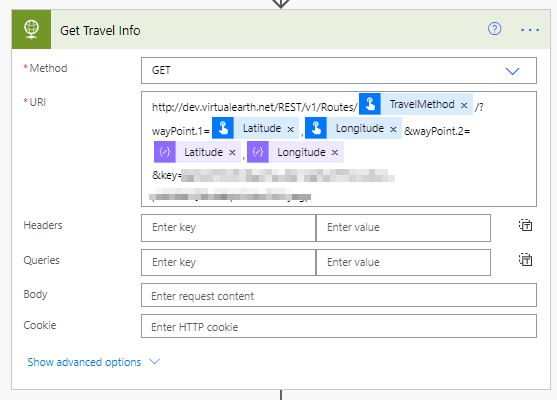
NOTE: Before using the Bing Maps API, you’ll need to register wit the Bing Maps API service to get a token.
Time Lapse
The last core step is to get the time it will take to travel and determine the arrival time from it by grabbing the travelDurationTraffic, which returns a pessimistic number of seconds it will take to travel and adding it to the current time. I could have used the travelDuration, which returns the travel time but not take traffic into account.
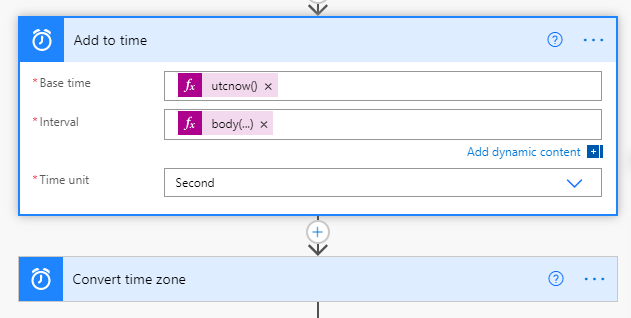
The travelDurationTraffic is captured from the JSON body of the Get Travel Info using the following expression
body('Get_Travel_Info')?['resourceSets']?[0]?['resources']?[0]?['travelDurationTraffic']
Send Notification
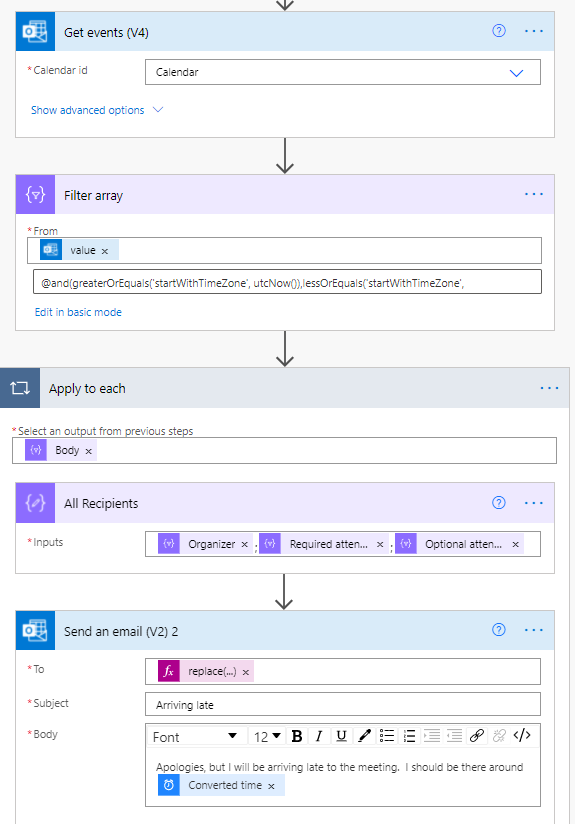
Great! Now that I know when I’m arriving, what do I do with it? I could send it to my wife or boss. To be a bit more sophisticated, I used the Office 365 Outlook connector to retrieve the list of events that start between now and when I’m due to arrive. For all these events, I grab all attendees and notify them via email that I’m running late.
Closing Remarks
The basis of this flow is to know where you are, when you’ll get to your destination, and whom you need to notify of your arrival time. You can further enhance this workflow by building other notifications and conditions (e.g. have option to notify meeting attendees or spouse with different messages).
You can download this flow from my GitHub site.
Originally published on Medium


