
In a recent research Microsoft study on the impacts that back-to-back virtual meetings have on our brains, the message was very clear. According to Michael Bohan, Sr. director of Human Factors Engineering at Microsoft,
Our research shows breaks are important, not just to make us less exhausted by the end of the day, but to actually improve our ability to focus and engage while in those meetings.
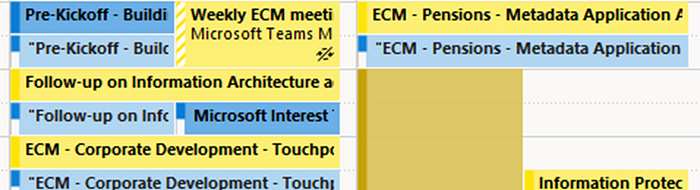
To combat this new behaviour, Microsoft has added new features to the Outlook calendar to automatically shorten meeting times.
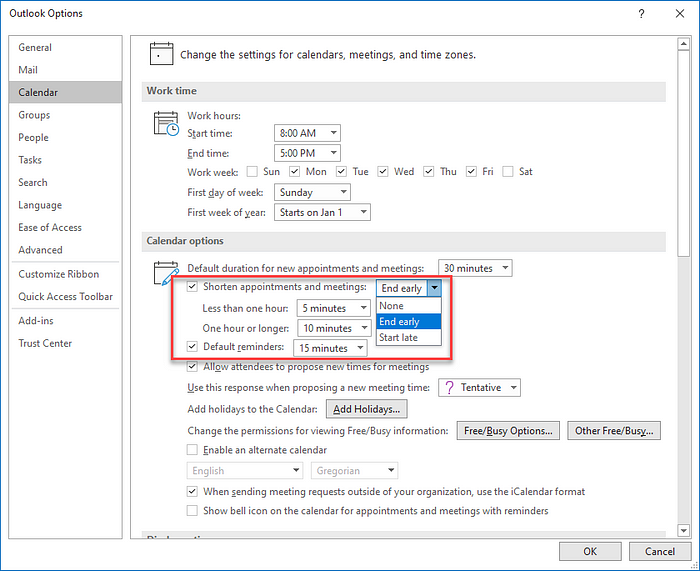
When you enable this feature, each meeting invite will be shortened by the predefined duration. This functionality is great as you don’t have to remember to give yourself a break. Outlook does it for you. However, there are two shortcomings to this feature:
- The feature only works on events or appointments scheduled by you. If someone else sends you a meeting invite who is not using the shortening feature, the meeting will be schedule for the full intended duration.
- As the feature shortens the meeting time, it leaves your calendar open for someone else to take up the vacated slot, particularly if it is of a longer duration.
What could help is to automatically create a header or trailer meeting for each meeting in your calendar, regardless of who created it.
Power Automate to manage event breaks
Power Automate lends itself to help manage these breaks by creating and editing the breaks based on your needs. The solution that I created in this article follows the following assumptions:
- Breaks are only created for meetings, not personal appointments
- Each break follows the same naming convention
- The body of a break includes the ID for the meeting for which the break is for
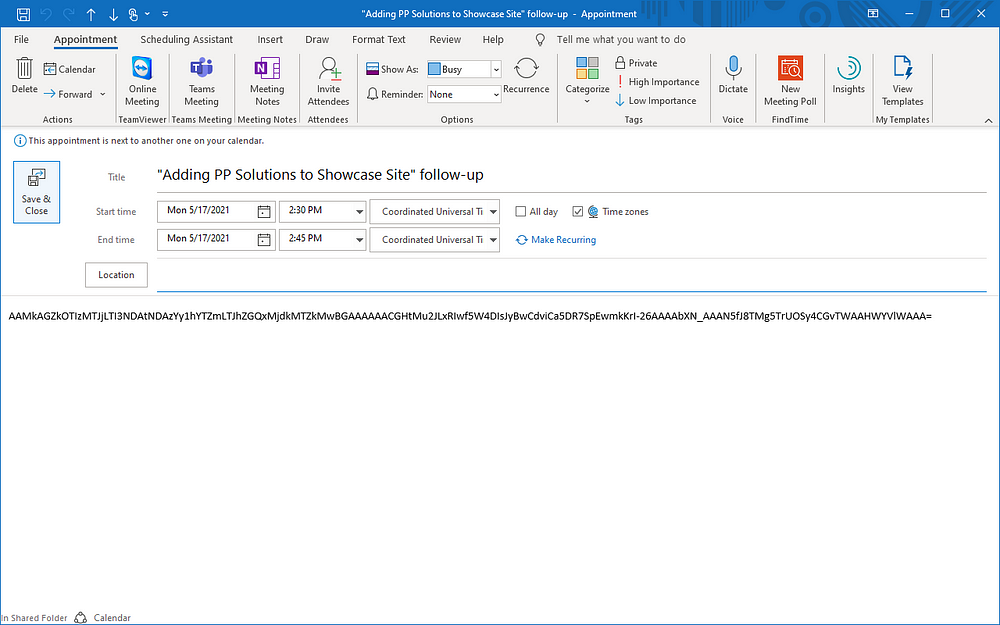
In the example below, you can see what such a break looks like. For my naming convention, I’m using “<meeting name>” follow-up. You can see the name in the title below. My breaks are set to 15 minutes. Most importantly, you can see the ID of the parent event without any formatting or additional text. This piece is critical to maintain the event-break relationship.
There are five different paths that this flow can take. These paths are driven by the ActionType (added, modified, or deleted), requiredAttendees, optionalAttendees, start, and end:
Deleted event
This is the first scenario to check because a deleted event will have most of its properties empty. The flow checks to see if ActionType is set to deleted. If so, the flow is searching for any future events who’s ID is equal to the body of the event. If one is found, then that event (which is the break) is deleted as well (and executes a second instance of the flow). A delete action ends the flow event.
Irrelevant events
Following the check for deletion, the flow checks to see if the event that triggered the flow is in the past or one where you are the only participant then the flow. In either case, nothing should happen. As I mentioned above, my flow is based on the premises that breaks are only created for events with other people and for future events.
Event is a break
Due to the trigger acting on created, modified, or deleted events, it will always trigger twice — once on the main event and once on the break. This check must come after the check for deleted event as the body of the deleted event would have been empty and miss the ID. I could have put this check between the deleted and check for irrelevant events, but that would mean that I’m collecting, filtering, and parsing event information when not needed. Hence, the third check it is.
Created or Modified event
If the flow has made it so far, then we know that it was the main event (not break) that triggered it and the event was not deleted. So the only remaining options are to add an event or modify it.
When an event is added, the break will be added by using a templated subject (Title). The start time is set to be at the end of the main event and break ends after the number of minutes defined in the Break Duration variable. The body of the break is set to the ID of the main event without any HTML markup!
When an event is modified, the same steps are followed but using the Update event (V4) action.
You can download Power Automate Flow from GitHub.
Final Words
The solution is quick to configure and get working in your environment. It doesn’t require any special licensing or access to other systems. However, keep in mind that if you are creating recurring events without end dates, the breaks will only be added for as many days as you defined in your query. As well, you may run into situations where the flow is getting throttled if you are applying changes to a large number of events in a short time.
Originally published on Medium

 Haniel Croitoru