

Have you ever wanted to easily automate the creation of Modern SharePoint sites without the needs of development or complex configurations? Well, you can.
Power Automate with the help of the SharePoint connector enables users with the proper permissions to create and configure SharePoint sites and even apply SharePoint designs and scripts to them. However, there is no simple way to use the connector to modify the homepage according to a templated version. Here’s an approach you can take to achieve this.
1. Create sample SharePoint Site
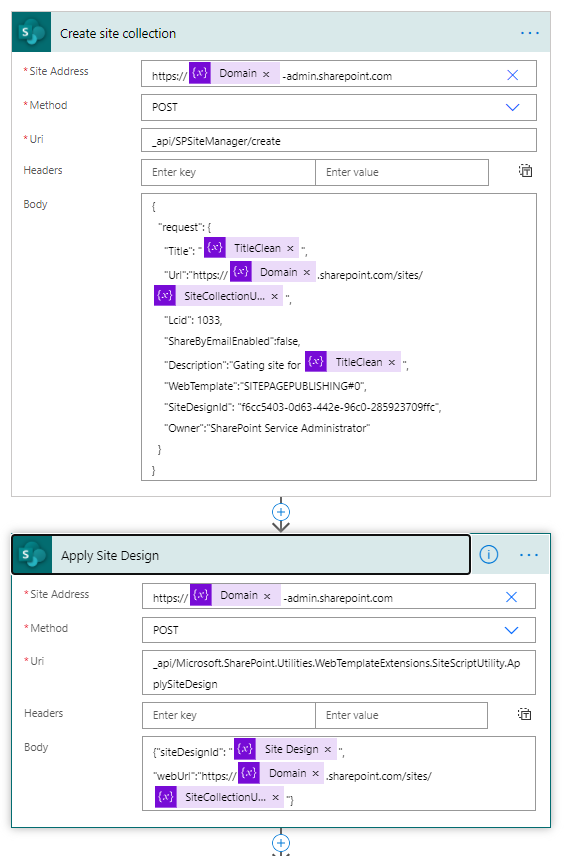
Begin by building a flow that will create the site and apply all the branding and settings to it. It’s important to start with this task to ensure that whatever data structures and web parts the homepage will leverage are provisioned. Here’s an example of a flow that can do this
You need to leverage the Send a SharePoint HTTP Request action for many of these actions
In this particular case, a Communications site is being provisioned. The Domain, TitleClean, and SiteCollectionURL are managed as variables and checked for special/illegal characters and duplication before provisioning the site.
Make sure to use the correct SiteDesignId as per Enable-SPOCommSite . For example, f6cc5403–0d63–442e-96c0–285923709ffc is for a Blank Communication site
2. Create sample Homepage
When configuring Modern SharePoint pages, the web parts reference the names and relative locations of the content from within the site. What you need to do is start with the site provisioning process and create a new site. Next, configure the homepage (or other pages) to your desire.
3. Copying Homepage to standard location
The homepage that you just configured will become your template. You need to copy it to a location that will be used in the provisioning process to copy the file from.
Unlike other documents, SharePoint pages cannot be copied to other sites using the user interface
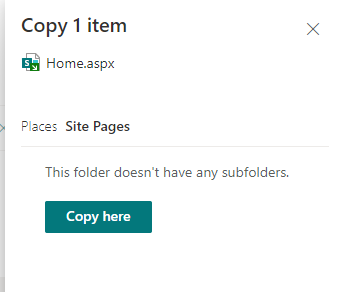
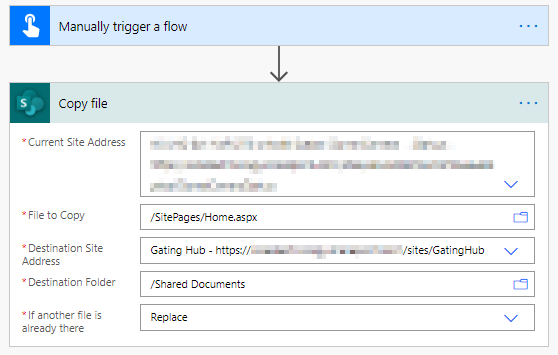
One way to overcome this limitation is using a temporary flow that does exactly that — copies the homepage to your master/template site. The new file should be copied to a Document Library, not Site Pages so that it can be easily copied in subsequent steps. Here’s what the homepage copy flow looks like
In the final step, you modify the provisioning workflow to update the homepage after a new SharePoint site has been provisioned by checking it out, copying the file from the master/template location, and then checking it in.
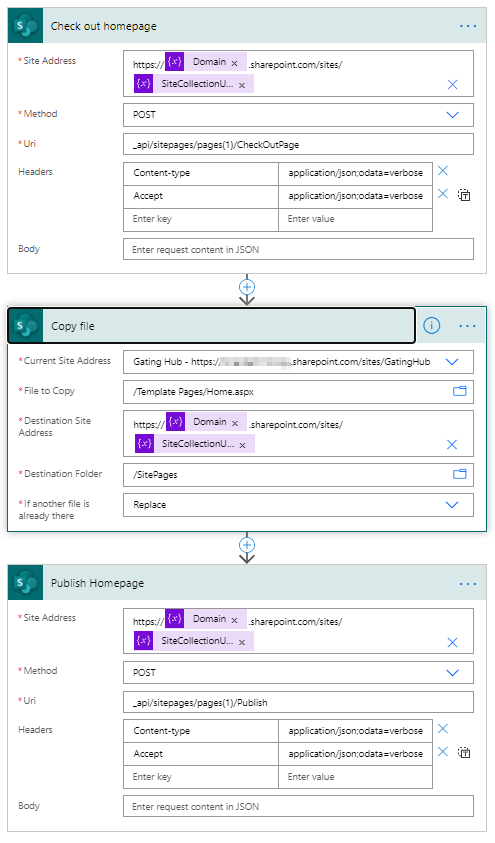
Anytime that you need to update the homepage template, all you will require is to configure it and use the workflow in step 3 to modify the master/template. Subsequent site provisions will automatically pick-up the latest version.
Originally published on Medium

 Haniel Croitoru