
When an organization rolls out Microsoft 365 and enables Power Platform for its users, it opens itself up to harvesting an internal community of citizen developers who can start creating flows in Power Automate to simplify and automate their business processes. To ensure that the environment doesn’t turn into the wild west, the organization must create a governance for the Power Platform that goes alongside to provide security guard rails to prevent any unwanted scenarios, such as data loss.

Power Platform has the concept of environments, which are containers for apps, flows, and more. Each Microsoft 365 tenant has a Default environment that gets provisioned when the tenant is created and cannot be deleted. Every user is automatically added to it with the ability to create apps and flows. This cannot be changed. When a user creates an app or flow, they have the ability to share it with other users as co-owners regular users. While this sounds good in theory, it could be quite detrimental. Consider the following scenario


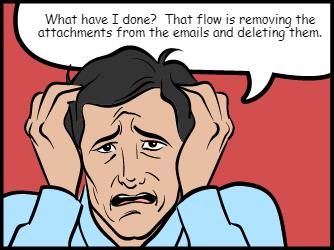
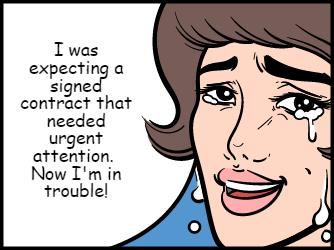
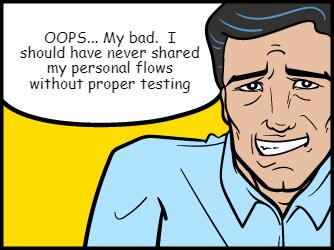
This scenario may sound funny, but can become a reality when users begin building flows without proper guidance and control. Unfortunately, there is no way today to prevent users from sharing flow with other users.
There is, however, a way to deal with such scenarios. Let me start by stating that the method described is not a way to literally prevent users from sharing. What this approach allows you to do is detect when sharing has occurred and revert it.
The solution is made up of two key components:
- Unified Audit Log in Compliance Center
- Power Automate Flow for removing sharing of flows
Unified Audit Log
The Unified Audit Log, is a Microsoft 365 service that is used to record events across most services within the tenant. Once enabled, events are recorded every 30 minutes or 24 hours, depending on the service. The audit log can be searched manually for specific results. In this case, we are interested in Edited flow permissions and Edited app permission.

The search results will reveal a lot of detail about each event, which can be used to get an idea of who shared what flow or app, with whom, and when.

Now that we know that we can get this information, the next step is to get it automatically. This can be done by using the method described by the Office 365 Management Activity API, which requires registering a webhook. Essentially what the webhook does is provide a way to send information about an event to a service that is expecting it. In our case, this is a Power Automate flow!
IMPORTANT: the webhook should subscribe to the Audit.General content type.
Power Automate flow
The purpose of the flow is to capture information about the app or flow that were shared and unshare it (is there even such a word?)
We begin with the flow HTTP trigger, that patiently waits to be called by the Unified Audit Log webhook. Once called, the webhook passes information about the event to the flow.
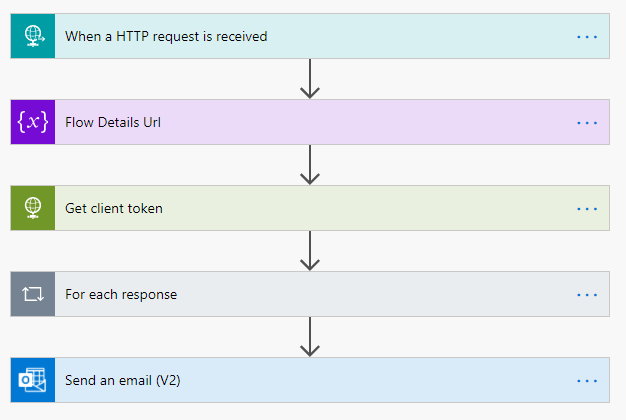
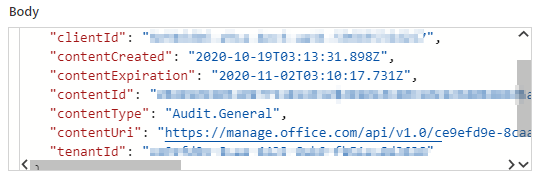
When the flow is triggered, it contains basic information about an event, such as when it occurred, the tenant ID, content type and more. The contentId parameter can then be used to retrieve all the details about the event by appending it to a URL described in the Office 365 Management Activity API and providing it a client token that is retrieved by the Get client token action.
Now we have an array of events that are returned from the request. We first limit our operations to PutPermissions as other operations are not relevant in this scenario. The next thing we do is split the Details URL on the forward slash (/)
split(items(‘Apply_to_each_2’)?[‘FlowDetailsUrl’],’/’)
The split gives us the following items:
[
"https:",
"",
"admin.flow.microsoft.com",
"environments",
"Default-XXXXXXXX-XXXX-XXXX-XXXX-XXXXXXXXXXXX",
"resources",
"flows",
"YYYYYYYY-YYYY-YYYY-YYYY-YYYYYYYYYYYY"
]
We are interested in items 4 and 7, which represent the environment and app/flow ID respectively. The last part of the flow leverages the Power Automate Admin connector to get the list of all Run-Only Users and Owners that are not the original owner who shared the flow and remove them.
NOTE: The variables(…) expressions reference the environment and flow ID’s mentioned above


Caveats
One main caveat in this approach is that there is a certain duration between when a flow is shared and when the Unified Audit Log registers the event during which the flow may be used by someone it was shared with.
Originally published on Medium

 Haniel Croitoru