

When your information architecture calls for certain fields that a user needs to select a value from, SharePoint provides three options — Choice, Lookup, and Managed Metadata fields. Which one you use in your implementation will depends on the specific business needs: is the use local or global, are values fixed or changing, and who can change values. SharePoint offers a special site called the Content Type Hub, which allows publishing such field types to all sites for consistency. However, I am excluding it from this discussion as I find there are often mixed feelings about it.
Choice
Choice fields are great when you have a limited number of options available that are used in a specific library or site and don’t change often. For example, in you Finance site you could have a fiscal quarter field. For Human Resources the Employee Type could be Full-Time, Part-Time, or Contractor. Modifying these values if needed should be left to someone who understands how to configure fields within SharePoint.
Managed Metadata
Managed Metadata fields shine in situations where the same values are used in multiple places for the same field and consistency is important. Take Departments as an example. IT, Information Technology, IS, Information System, and ITS may all represent the same physical department within an organization. Now, imagine you are trying to find all documents belonging to that department. Not an easy task. By defining such a value in your managed metadata taxonomy and reusing it across all fields, you can be sure that there will be no ambiguity. Needless to say, the responsibility of modifying the values will fall on a knowledge manager or other individuals with a similar role who understand how such fields are used and what the implications are when changing their values.
Lookup
Lookup fields are presented as a drop-down to the user. However, their values are actually defined in another SharePoint list within the same site. Imagine one of the fields being Project Name. You may start with a small set, but each year this set will change. One of the beauties of this approach is that you can give the responsibility of maintaining this lookup list to a business user who understands how to add and manage its items.
Filtering your Lookup Values
Now that we know what options there are, let’s go back to my last example with the Lookup fields and take it one step further. Suppose your organization is tracking projects and users are consistently tagging their content — great! Initially, there may be a dozen or so projects to pick from. Fast forward two years, and you may have over a hundred projects in your lookup list. At some point it would become difficult for a user to browse through such a long list to find the specific project their are looking for. To further complicate things, you may want to reference the full list of lookup items in another location. Thus, deleting old project names from the list would not be a good idea, as you would be breaking the references for old content that refers to them and wouldn’t get that full listing you’re looking for..
One way to deal with this limitation is to use a custom Power App form for your SharePoint list or library. Let me demonstrate how I got this to work.
I began by creating the projects list. For the sake of this article, all I added to the list was the project name itself in the Title field and a boolean field called Active that indicates whether the project should appear in my drop-down list or not.

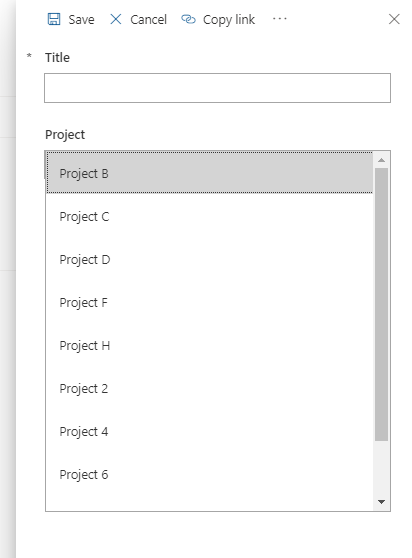
Next I created a second list that referred to my Projects list called Referring List. For the second list, I configured a custom Power App for editing items. In order to get the filtered items, all I need to do is alter the Items property of my Projects field from Choices([@ReferringList].Project) to Filter(RenameColumns(Projects,"Title","Value","ID","Id"),Active) . The original statement says that the app should simply load whatever choice values are available from the Project field in the ReferringList, but as I stated earlier, I only wanted a subset, where Active is set to true (or Yes). And so, the second expression looks directly at the Projects list and brings back a filtered number of results. The renaming of the columns was needed to ensure that other expressions are properly picking up these values. The image below shows the resulting drop down options without the inactive ones shown in the image above (Project A, Project E, Project G, Project 1, Project 3).
Originally published on Medium

 Haniel Croitoru