
Document Sets are great at organizing your related documents in SharePoint. Coupled with the ability to automatically add documents upon creation, prepending the name with the Document Set name and applying other other metadata make them a great candidate for many business scenarios. However, there are scenarios where the out of the box fall short:
- The naming convention needs sometimes dictate that the beginning of the name needs to remain the same while the latter part needs to be updated with the Document Set Name.
- There may be other metadata tags that should be applied to the documents that are different from each other.
- The owners of the library should be able to easily change the structure without involving IT
I recently was involved with a client that had exactly that needs for their legal department. They needed to create Board Books in SharePoint. However, content types were being managed centrally in the Content Type Hub, which the legal team didn’t have access to. Their requirements were fairly straight forward:
- Each Board Book should have a meeting date associated with it
- The templated Document Set should be placed in a location where the owners can easily access it and modify the structure when needed
- Rather than using folders, the client preferred using a metadata field to group the files
- Post the event to a group calendar
- Notify the users that the board book has been
User Experience
To the user, the experience of creating a new board book was supposed to be as seamless as possible. Using Power Apps, I created a simple that asks the user for the name, date, and attendees of the board meeting.

Once the form was submitted, the rest was up to the flow to do the heavy lifting.
Power Automate to the rescue
To deliver all the requirements, I created a flow that was broken down into 4 sections:
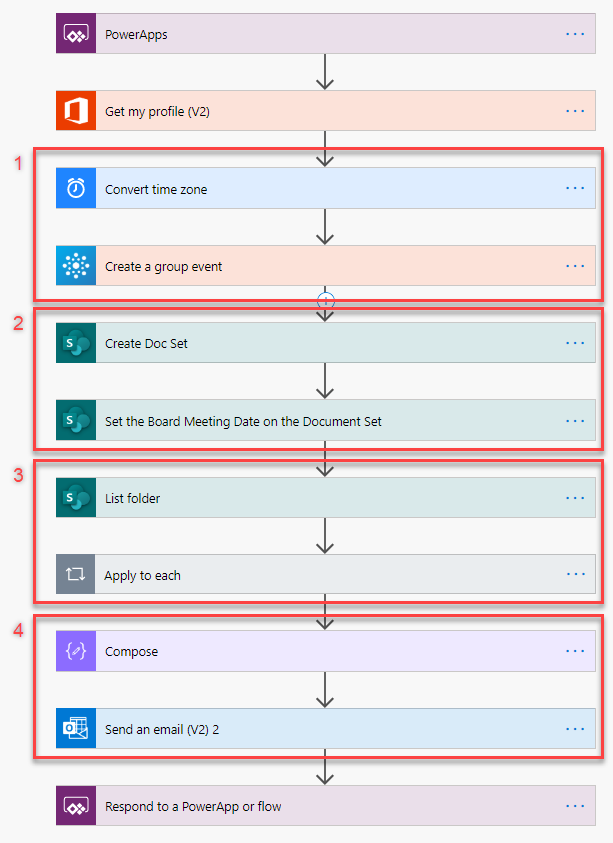
- Create group event — this is pretty straightforward, so I’ll skip over that in this article.
- Create the Document Set
- Copy the documents into the document set
- Send an email to the board meeting participants — again, this is a straightforward task that I’ll skip over.
Create the Document Set
A while back, Karine Bosch from Belgium posted a great article on creating a Document Set of a specific content type using flow (https://karinebosch.wordpress.com/2018/11/08/microsoft-flow-create-a-document-set/). This is an important part of the overall process. Here, the first step uses the Send an HTTP request SharePoint action to create the document set from a specific content type. The second step also uses a Send an HTTP request SharePoint action to set the specific metadata fields (board meeting date in this case).
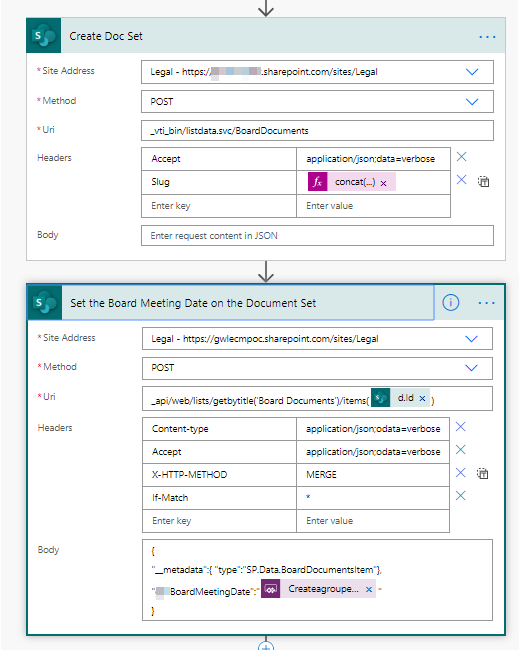
At the end of these steps, we have a new Document Set instance with the board meeting date set.
Copy the documents into the document set
In the next set of actions, I am retrieving the template documents and copy them to the newly created document set. I am leveraging the fact that internally, SharePoint treats document sets as a type of folder.

The first action retrieves my document set (folder) called Template. In it, I have my predefined documents with specific metadata fields applied to them. As you can see from the two images below, the Board Meeting Date is blank for the template documents (as expected), but the Board Meeting Section field is populated to allow the users to view the files in a folder view or metadata-grouped view.

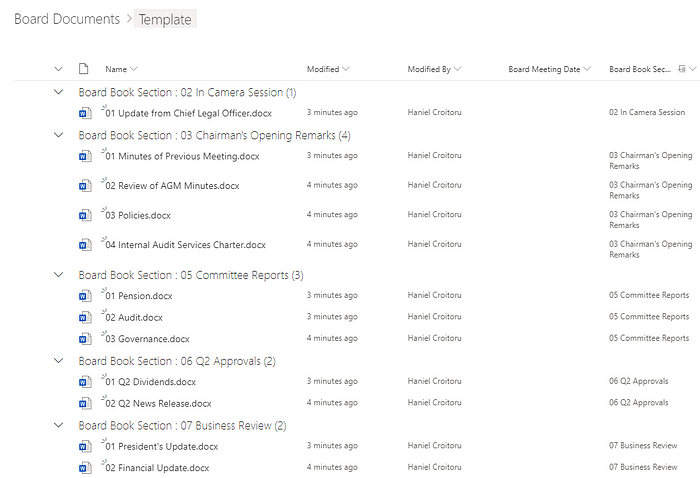
Next, I use the Copy Folder SharePoint action in conjunction with Apply to each to copy all the board book folders and files into the newly created Document Set. The resulting document set looks the same as the templated document.
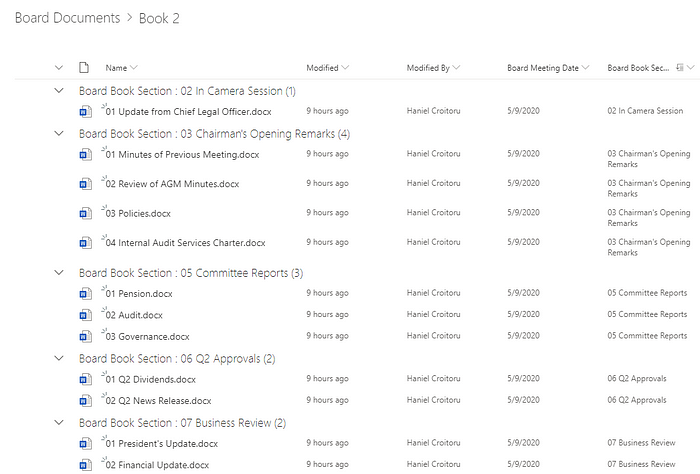
The existing Board Book Section field was copied over from the template document set. However, you will notice that the Board Meeting Date has been set. This is because the document set content type has been configured to automatically apply this field to all the files within the set.
Conclusion
This general approach for combining Document Sets with a workflow is a great way to expand the existing functionality to provide more flexibility on managing related documents.
Originally published on Medium

 Haniel Croitoru