
One of the challenges that Office 365 admins face is managing group membership in various services. For example, when working with SharePoint Online, the recommended practice is to leverage Azure AD security groups. This way, when the group membership changes, all the admin needs to do is update the Azure AD group and the change gets reflected wherever the Azure AD groups is used. Some of the newer services, such as Office 365 Groups Microsoft Teams are leveraging the Office 365 Group permissions model. The newer Azure AD Dynamic group membership can be leveraged here, where membership is based on specific rules, such as properties of a user. However, using Azure AD Dynamic groups requires an Azure AD Premium P1 license for each unique user that is a member of one or more dynamic groups Ref: Dynamic membership rules for groups in Azure Active Directory).
Today it is not possible to add Azure AD groups to an Office 365 Group (I’m crossing my fingers that this will be available in the future). So, if an admin wants to change the membership of various Office 365 Groups at once, there is no simple way. Though Teams lets you select Azure AD groups upon creation, as soon as it’s selected, the actual users within the Azure AD group are added to the team (and underlying Office 365 group), not the Azure AD group itself.
One way to overcome this limitation is to use a solution made up of 3 core components:
- Audit Log Webhook
- Azure AD Group to Office 365 Mapping list (e.g. SharePoint list or SQL table)
- Power App and Power Automates to manage the creation of the Office 365 Groups and/or Teams
These three components can be used during Office 365 group creation and Azure AD group updates to keep the two in sync. Here’s how:
Office 365 Group/Teams Creation
When an Office 365 Group is created, the wizard allows the user to select individual owners and members. For Teams, the creator can pick Azure AD groups, which are then expand to the individual users. In this approach, I recommend using a Power App for capturing the Team/Group creation information. For Owners and Members, rather than getting just individual user email, the app would allow the creator to select Azure AD groups as well. When the information is submitted, a Power Automate flow will take the information provided and perform 2 tasks:
- Add entries to the Azure AD Group mapping SharePoint list. This entails 1 entry per map per role.
- Add all the users within the Azure AD group to the newly created group’s role.
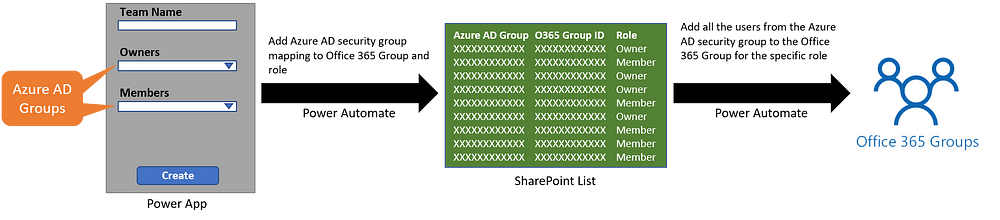
At this point, all users within the Azure AD security groups would be in the Office 365 group.
Updating AD Security Group Membership
When the membership of an Azure AD security group changes, the event needs to be captured and acted one. One way to do this is to set up a web hook on the Security & Compliance Center audit log that listens specifically to events where users are either added or removed from an Azure AD group.
A Power Automate flow could then be set up to trigger on these events. The only information that is needed is to know which Azure AD group has been affected and what the change was.

With the ID of the Azure AD group, the flow would lookup all the Azure AD group/Office 365 group mappings in the SharePoint list and iterate through all the Office 365 groups to reflect the same change (remove a user from the group if they were removed from the Azure AD group and vice versa).
This is by no means the only way to overcome the challenge of syncing the Office 365 Group membership to Azure AD security groups, but it can certainly simplify it when other means, such as Azure AD dynamic groups are not an option.
Originally published on Medium

 Haniel Croitoru