
Since it’s inception, Power Automate (formerly Microsoft Flow) has been positioned as being a no code/low code Citizen Developer workflow development platform. It’s awesome to see how far along it has come in such a short time and how much it has been adopted in the Office 365 community.
As someone who has been working with the Power Platform since its very early days, one frustration raised by many peers was the difficulty in making updates to a flow. This usually entails a lot of mousing around. Power Automate makers sometimes envy the Logic Apps developers as they have access to the source code (JSON) that represents its app. Unfortunately, there is no such tool available in Power Automate. Or is there…
One option you have is to export your flow, modify the zipped file and import them back. Doable, but cloogy. Another option is to use the Flow connector to achieve the same. The Create Flow action requires 5 parameters in order to generate a flow:
- Environment (GUID)
- Flow Display Name (String)
- Flow Definition (JSON)
- Flow State (Choice of Started or Stopped)
- Connection references (JSON)
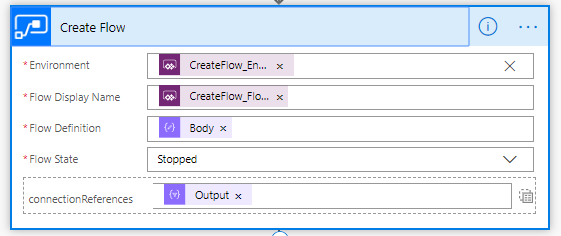
The fifth parameter is not required to create a flow. However, if you omit it and the Flow Definition is making references to a flow needing a connection, you end up with a broken action.

Great! So now that you know how the action works. Let’s look at what it takes to create a visual flow editor. There are essentially 2 parts to it — a Power App and a flow.
Power App
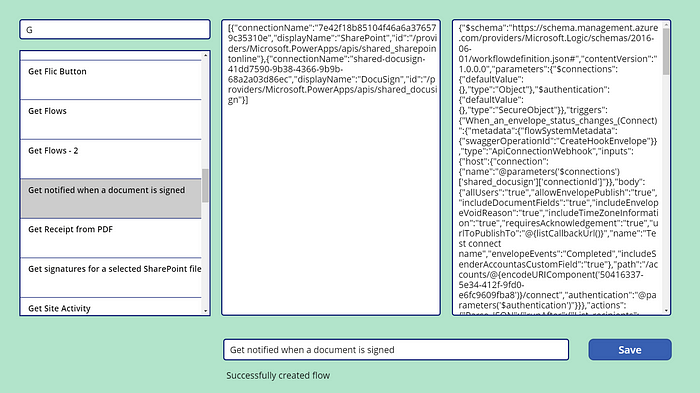
The minimum you need to do for the app is have a way to select the flow that you want to modify. In my case, I’m using one helper flow that leverages the Flow connector to provide me a list of all my flows in all environments. A second helper flow then retrieves the following properties for the selected flow:
- Environment (GUID)
- Flow Display Name (String)
- Flow Definition (JSON)
- Connection references (JSON)
Once I select a flow, I display the connections, definition, and display name in separate text boxes for editing. The save button is used to then save the changes. In my example, I am using this mechanism to create a copy of my flow rather than replacing the original one. I am doing this on purpose to have a backup in case something goes wrong. Of course, you could modify this process to save a copy of your original schema somewhere and modify the original.
Power Automate
As mentioned before, I there are 3 flows that make up this solution
Get Flows
This flow essentially iterates through all the environments and retrieves all the flows there are. It returns a filtered list that only includes the environment id, display name, and id for each flow.

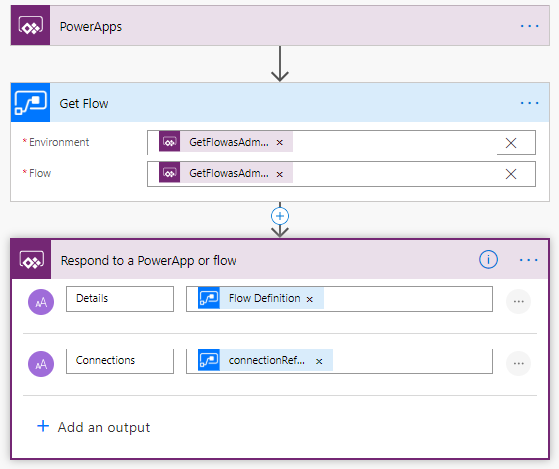
Get Flow Details
This second flow relies on getting the id and environment id and retrieves the details and connection references for the specific flow
Create Flow
This final flow does all the heavy lifting (although there really isn’t that much lifting to be done).
The Power App passes the following parameters to the flow:
- Environment (GUID)
- Flow Display Name (String)
- Flow Definition (String)
- Connection references (String)
The first step is to convert the definition and connection references from simple strings to JSON objects. This is performed in the Parse Definition and Parse Connections actions. You might have noticed that the Parse Definition action does not have a specific schema defined. The reason for this is that each flow has a different schema based on the triggers and actions it is using.
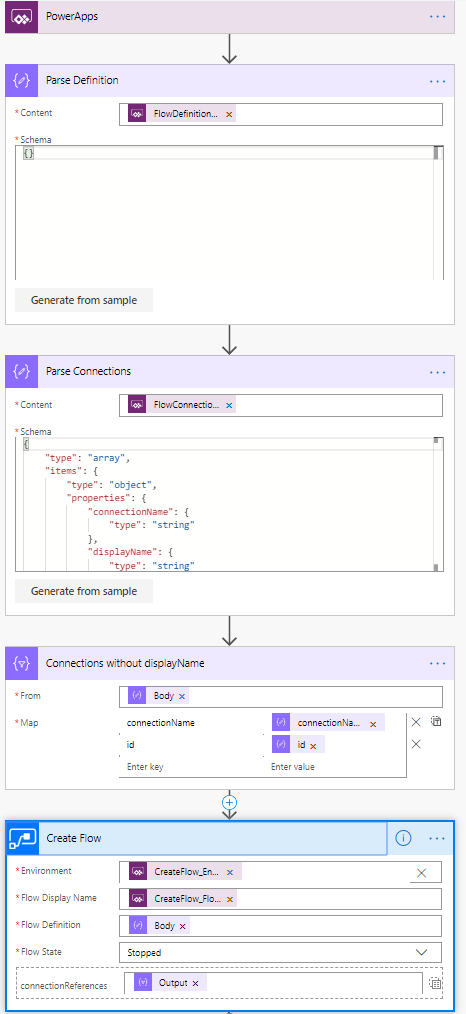
The actions JSON object by default includes three parameters for each connection:
- connectionName
- displayName
- id
As it turns out, the Create Flow action doesn’t like to be told what the displayName is as it generates its own name from the connectionName and id. Therefore, the displayName key/value pairs need to be removed from the connection references JSON object before it can be used. This is done in the Connections without displayName select action. Now we have all the pieces we need to create a new flow.
In my case, I’m forcing all new flows to be in the stopped state so I can review them before they become live.
Caveats & Limitations
Currently there is no way to query flows within a solution using the Flow connectors.
When you save a flow, make sure that the structure is valid and accepted by Power Automate. Otherwise, the creation will fail.
Originally published on Medium

 Haniel Croitoru